Resume Builder in Google Docs: Templates, Collaboration, Privacy, and PDF Export
Create a resume in Google Docs with a stable template, clean formatting, named versions, controlled sharing, actionable feedback, and a verified PDF download.
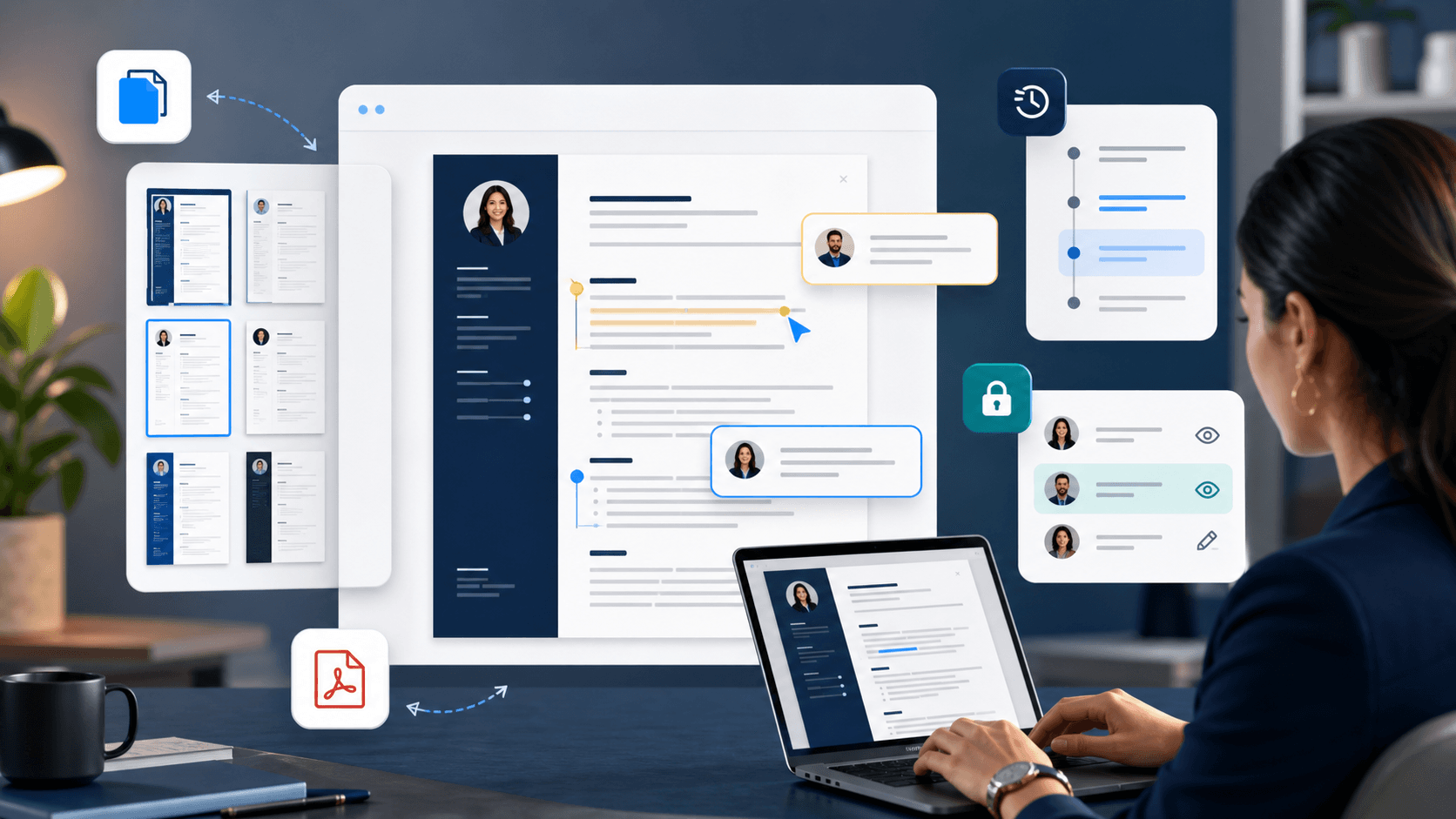
A search for “resume builder Google Docs” usually reflects a practical need: create a resume in a familiar browser, work from any device, ask someone for feedback, and download a file without installing desktop software. Google Docs supports that workflow through templates, automatic saving, comments, version history, copies, permissions, and downloads. The tool is convenient, but the quality of the resume still depends on structure, evidence, and final-file inspection.
Cloud collaboration introduces its own risks. A public “anyone with the link” setting can expose personal information. An editor can accidentally change content. A copied template can retain comments or unfamiliar formatting. A browser page that looks correct can wrap differently after DOCX or PDF download. A disciplined workflow preserves the benefits while reducing these avoidable failures.
This independent guide covers template selection, document construction, evidence writing, formatting, collaboration, version control, privacy, tailoring, and export. Google Docs and Google Drive are Google products; CurriculumVitaeMaker.com is not affiliated with or endorsed by Google. Use current Google Help instructions for product behavior because menus and features can change.
To use Google Docs as a resume builder, open a resume from the Template Gallery or create a simple document, immediately make and name your own copy, replace all sample content, use consistent paragraph styles, and keep essential information in a clear reading order. Invite reviewers with the minimum required permission, use named versions for milestones, then download and inspect the requested PDF or Word file before applying.
Key takeaways
- Create your own copy before editing a shared template.
- Use styles and paragraph spacing instead of repeated spaces and blank lines.
- Restrict link access and give reviewers Commenter permission when editing is unnecessary.
- Name important versions and preserve the exact submitted copy.
- Open and test the downloaded file independently from the browser document.
Open a template or create a simple document
Use the gallery as a starting point, not as a promise of application quality.
Google’s official Help Center explains that the Docs home page includes a Template Gallery and that selecting a template opens a copy. Availability can vary by account type, organization, region, and language. Look for a resume structure that fits your content and destination. Evaluate reading order, headings, column use, font size, graphics, and space for actual achievements before committing to the design.
If you open a view-only resume shared by another source, use File and Make a copy when permitted. Rename the new document immediately and choose the correct Drive location. Do not request edit access to a public master template merely to personalize it. Your own copy protects the original and keeps your personal details from appearing in a document used by other people.
A blank document may be the best option for a simple resume. Set the page, margins, font, and styles; then add contact details, summary when useful, skills, experience, education, and relevant additional sections. A clean single column can be easier to maintain than a gallery design built with multiple invisible structures. The template saves setup time only if it remains stable after real content is added.
Practical checklist
- Template available to your account and region
- Clear top-to-bottom reading order
- Enough space for verified evidence
- No essential text embedded in images
- Easy to edit without breaking alignment
Create a stable formatting system in Google Docs
Consistent styles make global changes safer than line-by-line formatting.
Choose a readable body font and define a visible hierarchy for your name, section headings, role titles, and supporting details. Use paragraph styles consistently. If you change the appearance of all section headings later, a style-based document is easier to update than individually bolded lines. Keep colors restrained and ensure meaning remains clear in grayscale or for readers who do not perceive the contrast.
Use paragraph spacing rather than inserting several empty lines. Use tab stops or a simple layout for dates rather than repeated spaces. Turn on nonprinting characters if available to diagnose spacing. Keep a role heading with its first bullet when possible, and inspect page breaks after every substantial edit. A browser-based resume is still a paginated document when downloaded.
Avoid placing essential contact details inside drawings, images, complex tables, or decorative objects. Multi-column layouts can look polished but create uncertain text order in some application systems and on smaller screens. Keep a separate creative portfolio version if needed. The application document should transport evidence reliably before it demonstrates design skill.
Replace template content with verified evidence
Delete every placeholder and write from a source record.
Build a career evidence inventory before trying to fit information into the page. Record employers, titles, dates, responsibilities, projects, actions, methods, scale, collaborators, and outcomes. Use reliable records to verify facts. The inventory can remain in a private document and be much longer than the resume. Its purpose is to protect useful details while the application copy stays focused.
Replace every template field deliberately. Search for sample names, placeholder addresses, dummy links, lorem ipsum, and instructional comments. Confirm your phone, email, portfolio, and profile links. Remove sections that do not help the target role rather than leaving weak filler. Add relevant projects, certifications, publications, or volunteering when they provide stronger evidence than an unused template category.
Write achievement bullets with action, object, method, scope, and outcome as appropriate. Do not force every line to contain a percentage. A verified qualitative result is better than invented precision. Keep employer, title, dates, and bullets together so a reader can understand where the evidence was gained. The resume builder Google Docs workflow should organize your history, not rewrite it into unsupported claims.
Practical checklist
- Verified dates and names
- Personal contribution separated from team outcome
- Relevant tools and methods
- Authorized metrics or clear qualitative results
- No placeholder content or unresolved instructions
Collaborate with clear questions and limited permissions
Ask reviewers for decisions, not for unlimited rewriting.
Google provides Viewer, Commenter, and Editor access levels. Give the minimum permission needed. A mentor who only needs to leave feedback can often be a Commenter rather than an Editor. Keep general access Restricted and invite specific people when the document contains personal information. If link sharing is necessary, review the setting and remove access after the review period.
Ask focused questions: Can you identify my target role in fifteen seconds? Which bullet best proves the required skill? Is any sentence unclear or unsupported? Should a section move? Specific questions produce actionable comments and reduce conflicting rewrites. Reviewers should not add confidential facts, change dates, or exaggerate ownership. You decide which suggestions to accept.
Resolve comments after acting on them and inspect the document for suggestion-mode changes. Ensure every proposed deletion or insertion has been accepted or rejected before download. Avoid leaving private reviewer discussions inside a file that might later be shared. Keep an independent backup before major collaborative editing so you can compare the intended meaning.
Use named versions and targeted copies
Cloud autosave prevents lost keystrokes, but it does not create an application strategy.
Google automatically saves changes while you work online. Version history can show edits and restore earlier versions for users with appropriate permission. Name meaningful milestones such as “Master verified,” “Data analyst tailored,” and “Submitted 2026-09-01.” Named versions are easier to recognize than timestamps when a reviewer’s rewrite needs to be reversed or a former achievement recovered.
Create a separate copy for each materially different application rather than continuously overwriting one resume. Keep the comprehensive master protected and use copies to change the headline, summary, achievement order, and selected skills. The underlying facts remain consistent. A targeted copy helps relevant evidence appear earlier without deleting valuable information from your long-term record.
Store the announcement, cover letter, exported resume, and submission notes in one application folder. Use consistent filenames. Version history is useful inside Docs, but the employer receives a downloaded file, so preserve that exact final artifact too. If an interview arrives later, you should be able to see the precise wording that reviewers saw.
Practical checklist
- Protected master evidence document
- Named milestone versions
- Separate targeted application copies
- Final downloaded file stored with the announcement
- Clear document and folder names
Tailor the Google Docs resume without creating errors
Change emphasis while protecting dates, ownership, and chronology.
Map the target announcement’s central requirements to your evidence. Use exact terminology when it truthfully describes your experience, then show the term inside a concrete achievement. Reorder strong matching bullets and remove unrelated detail. Do not paste the employer’s wording into your history or add tools merely to improve a keyword count. The document should remain accurate when the announcement is closed.
Check cross-document consistency after every targeted edit. Dates, titles, education, and credentials should agree with your profile and application form. If you shorten an entry, preserve enough context to understand the contribution. A copied Google Doc may carry an old organization name in the title, header, cover letter link, or filename, so search for previous targets before exporting.
Read the tailored resume independently. It should tell one coherent professional story, not resemble a keyword collage. Ask whether the opening promise is supported by recent evidence and whether essential genuine qualifications are easy to find. If everything looks equally important, improve selection and hierarchy rather than adding more bold text.
Protect personal information in Drive and shared links
Convenient sharing should not turn a resume into a permanently public page.
A resume commonly contains a name, location, email, phone number, work history, and education. Keep access Restricted by default and invite known reviewers. Do not post an editable resume link publicly or allow anyone with the link to edit. Check the access panel from a signed-out or private window when you need to confirm what another person can see.
Remove access when feedback is complete and review old share links in application folders. Avoid including government identifiers, banking details, passwords, full home addresses when unnecessary, confidential business information, or references’ contact details without consent. If a reviewer needs a redacted version, create a copy rather than deleting information from the master and hoping to restore it later.
Account security matters because Drive may contain several applications and supporting records. Use strong unique credentials and available multifactor protection. Follow organization policy when working from a school or employer-managed account; administrators may control retention or access. Consider keeping personal career documents in an account you can retain after leaving the institution.
Download and test the final resume file
The browser document is not necessarily the file the employer will read.
Google’s official workflow uses File and Download, followed by the desired file type. Choose the format requested by the employer. PDF generally preserves layout, while DOCX may be required or useful for editing. Google also provides a print-to-PDF route for large documents, although an ordinary resume should normally export directly. Keep the Google Doc as the editable source.
Open the downloaded file independently. Verify page size, page count, margins, font rendering, dates, bullets, links, and page breaks. Ensure text remains selectable and copy it into a plain-text editor to inspect reading order. If the DOCX opens differently in Word, repair the source or create a format-specific copy rather than assuming the employer sees the browser version.
Use a clear filename containing your name and document purpose. Check PDF properties and remove old title metadata when appropriate. Confirm that no comments, suggestion marks, placeholders, or blank pages appear. Submit the tested artifact, preserve the exact copy, and note the date. This final check is what turns Google Docs from a convenient editor into a dependable resume workflow.
Frequently asked questions
Can Google Docs be used as a resume builder?
Yes. It provides templates, text formatting, automatic saving, comments, version history, sharing controls, copies, and downloads. You still need to supply accurate evidence, choose a suitable layout, tailor the content, and test the final file.
Where are resume templates in Google Docs?
On a computer, open the Google Docs home page and use Template Gallery. Template availability can differ by language, account, or organization. You can also create a blank document or make a permitted copy of a trusted template.
Should I share my resume as a Google Docs link?
Usually submit the file type requested by the employer. For feedback, keep access restricted and invite specific people with Viewer or Commenter permission. Avoid making a personal resume publicly editable.
How do I save a Google Docs resume as PDF?
Use File, Download, and select PDF Document when available. Open the downloaded PDF and inspect formatting, links, selectable text, page count, and reading order before submitting it.
Are Google Docs resume templates ATS-friendly?
Template structures differ and employer systems vary. Choose a clear reading order, conventional headings, selectable text, and restrained formatting, then test the downloaded file rather than trusting a template label.
Is this article affiliated with Google?
No. CurriculumVitaeMaker.com is independent. Google Docs and Google Drive are Google products, and current product instructions should be confirmed in the official Help Center.
Public guidance used in this article
These sources support the general workflow and conventions in this guide. Regional, professional, and employer instructions can differ, so use the destination’s requirements when they are more specific.
- Google Docs Editors Help — Use templatesOfficial instructions for opening Google-created templates and making document copies.
- Google Docs Editors Help — Create, view, or download a fileOfficial guidance on automatic saving, copies, naming, and downloading different file types.
- Google Docs Editors Help — Find what changed in a fileOfficial instructions for reviewing, naming, copying, and restoring versions.
- Google Docs Editors Help — Access levelsOfficial explanation of restricted and link-based access with viewer, commenter, and editor roles.
Read more about our editorial standards and responsible AI approach.
Turn the guidance into a finished document
Use the builder to organize your evidence, choose a readable template, and review the final file before applying.