Microsoft Word Resume Builder: Create, Format, and Export a Reliable Resume
Learn how to build a resume in Microsoft Word using styles, templates, consistent dates, controlled spacing, review tools, and a carefully checked PDF export.
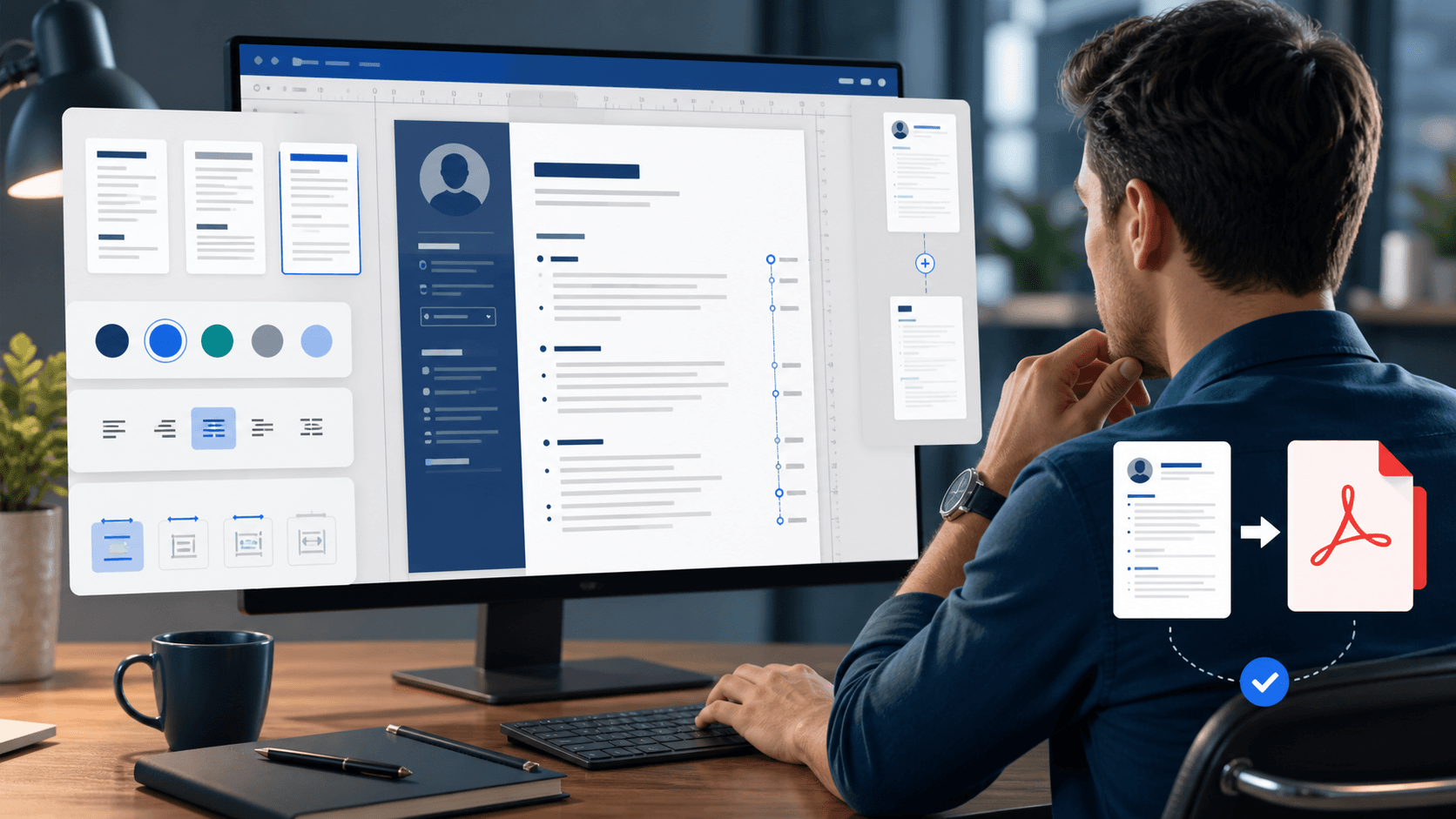
Microsoft Word can function as a capable resume builder because it combines templates, precise text editing, reusable styles, comments, spell checking, page controls, and PDF export. It also gives users enough freedom to create fragile layouts. Repeated spaces, floating text boxes, invisible tables, and manual line breaks may look correct on one screen and break when content changes, fonts substitute, or the file is opened elsewhere.
The solution is to treat the resume as a structured document. Headings should share defined styles. Dates should align through consistent paragraph settings or carefully tested tab stops. Experience entries should remain connected to their bullets. The source file should be easy to update without rebuilding every visual detail. Good construction reduces formatting work and protects your writing when you create a role-specific copy.
This guide covers Microsoft’s official template workflow and the editorial decisions that come after opening a template. It explains page setup, styles, content replacement, alignment, ATS-aware simplification, review, version control, and export. Microsoft Word is a registered Microsoft product; this independent guide is not affiliated with or endorsed by Microsoft.
To build a resume in Microsoft Word, begin with a blank document or a suitable template, replace all placeholder content, use Word styles for consistent hierarchy, keep essential information in a simple reading order, control spacing with paragraph settings, and save an editable DOCX source. Export a PDF only after checking page breaks, links, text selection, document properties, and the employer’s requested file type.
Key takeaways
- Choose a template for structure and readability, not decoration.
- Use styles, paragraph spacing, and tab stops instead of manual formatting tricks.
- Keep a master DOCX and create targeted copies for applications.
- Inspect both the Word file and exported PDF independently.
- Microsoft provides the software workflow; your evidence and tailoring determine content quality.
Start with a suitable template or a blank document
Choose the simplest foundation that supports your target application.
Microsoft’s official workflow is File, New, then search for “Resume” or “Cover Letter” and select a template. Word for Mac and Word for the web use comparable template workflows, although exact controls can differ. A template provides initial fonts, margins, sections, and alignment. It does not guarantee that the design is suitable for your industry, employer system, content volume, or regional expectations.
Preview the structure before committing. Identify whether name and contact details are ordinary text, whether experience follows a clear order, and whether the template relies on multiple columns, large graphics, rating bars, or fixed boxes. Check how much space remains for your actual evidence after decorative elements. A visually impressive preview can become cramped when three real roles replace two short placeholders.
Starting from a blank page is often faster for a simple one-column resume. Set margins, choose a readable font, create heading styles, and add sections in a predictable sequence. The blank approach avoids hidden formatting inherited from a complex template. Whichever starting point you choose, save a fresh working copy immediately so the original remains available for comparison.
Practical checklist
- Readable one- or two-page structure appropriate to your experience
- Editable text rather than image-based labels
- Enough space for role-relevant evidence
- No essential content trapped in decorative objects
- Stable layout when an extra bullet is added
Set the page and typography system first
A few intentional defaults prevent dozens of inconsistent local fixes.
Choose the page size expected in the destination region—commonly Letter in the United States or A4 in many other markets. Set practical margins before writing and check any employer-specific rule. Select one readable body font and, if desired, one compatible heading treatment. Keep body text comfortable at normal zoom rather than shrinking it late to force another paragraph onto the page.
Use the Styles pane or built-in heading and body styles as the control center. Define the font, size, weight, color, line spacing, and paragraph spacing once. Apply the style to every equivalent heading instead of formatting each manually. When you later adjust a heading size, the change can update consistently. This is the difference between a reusable Microsoft Word resume builder workflow and a collection of individually decorated lines.
Use paragraph spacing before and after text rather than repeated blank paragraphs. Turn on nonprinting marks while editing so tabs, spaces, paragraph marks, and page breaks are visible. These marks do not print, but they reveal why alignment behaves unexpectedly. Use Undo and versioned copies rather than stacking more manual spacing on top of a problem you do not understand.
Replace every placeholder with verified career evidence
The template is a container; your facts and selection create the application.
Do not write directly over placeholders without understanding their purpose. First assemble contact details, target headline, summary if needed, employment dates, accomplishments, education, skills, certifications, and projects in a plain source note. Verify names and dates. Then replace each section deliberately and delete unused sample material. Search for common placeholder terms before finishing so no example phone number or fictional employer survives.
Write experience in reverse chronological order unless a destination requires another format. Keep title, employer, dates, and related bullets visually connected. Prioritize achievements showing action, method, scope, and result. A Word template may include room for a duty paragraph, but you can adapt it to concise bullets when that communicates evidence more effectively. The sample layout is not a rule.
Tailor a copy rather than editing the only master file. Rename it with the role or organization and remove irrelevant content before adding more. Word’s Save As or Make a Copy workflow protects the comprehensive source. Microsoft also recommends recruiter-friendly filenames; a clear pattern such as “Surname_GivenName_Role_Resume.docx” is easier to manage than several files named “final.”
Practical checklist
- All placeholder names and sample sentences removed
- Contact details and links verified
- Dates consistent across the document and profile
- Claims supported by evidence
- Targeted copy saved separately from the master
Align dates without repeated spaces or fragile objects
Use document controls that remain stable when words change.
Never align dates by pressing the spacebar repeatedly. Proportional fonts give letters different widths, and the alignment will shift when content, margins, font, or device changes. Use a right-aligned tab stop on the paragraph ruler when the title and date share one line. Apply the same tab setting to equivalent paragraphs. Test long titles so they wrap without colliding with dates.
Tables can produce stable alignment in Word, and Microsoft notes that templates may use them, but they add structural complexity. If you use a table, keep it simple, remove unnecessary borders, inspect the text order, and avoid nesting important sections inside elaborate grids. For applications where parsing is uncertain, a single-column layout with dates on their own line is the lowest-risk choice.
Use Keep with next for a role heading that should stay with its first bullet, and use widow/orphan or paragraph controls to reduce awkward breaks. Insert deliberate page breaks when necessary rather than pressing Enter until content moves. Recheck every break after tailoring because deleting one sentence can change the rest of the document.
Keep the Word resume readable in online applications
Simplify the application version when the destination system is unknown.
Use ordinary section headings and keep essential information in the main body. Avoid turning contact details into WordArt, inserting a screenshot of a resume, or relying on icons without text labels. Decorative headers, footers, text boxes, charts, and multi-column sidebars may create an uncertain extraction order. A recruiter still needs a readable page, so replace decoration with clear hierarchy rather than stripping all formatting.
Use job-description terminology only when it matches your experience. Word’s search function can help locate inconsistent acronyms, product names, or repeated phrases. Do not hide keywords in white text or document properties. Include relevant terms within summaries, skills, and achievement evidence where they make sense. The file should remain persuasive if a person reads it without any scoring tool.
Test the document by selecting and copying its content into plain text. Employer, title, dates, and bullets should remain in a logical sequence. Search the file for a known skill and check links. This is not a simulation of every applicant tracking system, but it reveals whether basic Word construction has separated related content or converted important information into non-text objects.
Use Word’s review tools without leaving editing residue
Feedback is useful only when the submitted copy is clean.
Use spelling and grammar tools as one layer of review, not the only one. Resume fragments and role-specific terminology can confuse automated suggestions, while a correctly spelled wrong word may remain unnoticed. Read the document aloud and verify proper nouns, dates, numbers, verb tense, and punctuation. Microsoft recommends getting feedback from a trusted friend or mentor; give reviewers a clear question rather than asking whether the resume is “good.”
Comments and Track Changes can support review, but accept or reject every change and remove comments before submission. Switch the display to confirm that no hidden markup will print or appear in the exported PDF. Inspect the Document Inspector or file properties when appropriate to remove outdated titles, author details, or comments inherited from a template.
Protect sensitive content when sharing. Send a restricted link or a copy only to people who need access, and remove access later. Do not include government identifiers, banking information, passwords, confidential customer details, or references’ contact information without consent. A resume contains personal data even when it is designed for distribution.
Practical checklist
- Spellcheck plus independent proofreading
- Comments resolved and removed
- Tracked changes accepted or rejected
- Document properties reviewed
- Sharing permissions limited appropriately
Export and test the final PDF
PDF preserves presentation, but conversion still needs inspection.
Microsoft provides PDF export in desktop and web versions of Word, although menu names differ. Use the official Export, Save As, or Print-to-PDF workflow appropriate to your version. Keep the DOCX as the editable source and create the PDF as a delivery copy. Follow the employer’s requested type; do not send PDF when the portal explicitly requires Word.
Open the exported PDF outside Word. Check page size, page count, margins, font substitution, line breaks, bullets, links, and whether text remains selectable. Zoom out to see the full page and zoom in to inspect small type. Verify that no blank page was created by an extra paragraph and that a section heading did not become isolated at the bottom.
Copy the PDF text into a plain editor and scan the order. Test external links directly. Microsoft notes that PDF is intended to preserve layout across computers, but it is not an access-control guarantee and can still be edited with suitable software. Send only the information necessary for the application and retain a secure copy of exactly what you submitted.
Turn the Word document into a reusable resume system
A stable master makes future tailoring faster and safer.
Maintain a master resume containing complete evidence and create targeted application copies from it. Keep full accomplishment notes outside the page-constrained layout so useful material is not lost during editing. Use predictable folders and filenames with the organization, role, and date. This makes it possible to identify what an employer received months later.
If you frequently use the same layout, Microsoft allows a customized document to be saved as a Word template, commonly a DOTX file. Keep fixed styling and section prompts in the template, not personal details that should not spread into future documents. Test a new document created from the template before relying on it, especially after a Word update or font change.
Review the system periodically. Update current roles, remove expired credentials, verify links, and refresh accomplishment notes while evidence is available. The Microsoft Word resume builder workflow should reduce formatting decisions over time, leaving more attention for accurate writing and role-specific selection. The durable asset is not one PDF; it is the editable evidence and structure behind every version.
Frequently asked questions
Does Microsoft Word have a resume builder?
Word provides resume templates, editing and review tools, reusable styles, and PDF export. Microsoft’s official instructions begin with File, New, and a search for resume or cover-letter templates. Availability and menus vary by version.
Is it better to start with a Word template or a blank document?
Use the option that gives you the simplest reliable structure. A suitable template saves setup time, while a blank document avoids hidden formatting and can be faster for a one-column resume.
Should I submit DOCX or PDF?
Follow the employer’s instruction. Keep DOCX as an editable source. If PDF is accepted, export and inspect it to confirm layout, selectable text, links, and page count.
How do I align resume dates in Word?
Use a consistent right-aligned tab stop, a carefully tested simple table, or place dates on a separate line. Do not use repeated spaces because they shift when formatting changes.
Can Word templates work with applicant tracking systems?
Some can, but template design varies and systems differ. Prefer clear headings, selectable text, simple reading order, and restrained formatting; then test the exported document.
Is this guide affiliated with Microsoft?
No. CurriculumVitaeMaker.com is independent. Microsoft Word is a Microsoft product, and the official Microsoft Support pages linked below control product instructions.
Public guidance used in this article
These sources support the general workflow and conventions in this guide. Regional, professional, and employer instructions can differ, so use the destination’s requirements when they are more specific.
- Microsoft Support — Use a template to create a resumeOfficial instructions for finding Word resume templates, replacing placeholders, reviewing, naming, and exporting.
- Microsoft Support — Create a templateOfficial guidance for saving and reusing a customized Word template.
- Microsoft Support — Save or convert to PDFOfficial PDF conversion guidance and format considerations.
Read more about our editorial standards and responsible AI approach.
Turn the guidance into a finished document
Use the builder to organize your evidence, choose a readable template, and review the final file before applying.